
Supported banks and files
| Bank | Payment type | What Bills Hub produces |
|---|---|---|
| CIMB | Bulk transfers, with or without email payment advice | CIMB's own BizConverter workbook, filled in, to convert and upload to BizChannel@CIMB |
| CIMB | JomPay | The JomPay sheet of the same workbook |
| Hong Leong Bank | Bulk transfers | ConnectPro bulk payment file |
| Hong Leong Bank | JomPay | JomPay bulk payment file |
| Any bank | Transfers | A readable CSV |
Other banks are added from the bank's own template or specification. A layout that hasn't yet been through a real payment is marked Layout unverified; before your first real run we send one small payment to a known account with you and confirm the bank accepts the file.
1. Get supplier bank details right in Xero
Bills Hub takes payee details from each supplier's Financial details in Xero:
- Bank transfer: put the account number in Bank account number and the bank's name (for example Maybank or Public Bank) in Bank account name. Bills Hub turns the name into the bank code the file needs.
- JomPay: put the biller code (digits only) in Bank account name and the utility account number in Bank account number. Any all-digit value is treated as a JomPay biller code.
- CIMB with payment advice: add the supplier's email address so CIMB can send the advice.
Then open Bank files and press Sync accounts & payees. This brings in your paying bank accounts and every supplier's bank details. Under the button you can see when each company last synced.
Use one Xero contact per payee account. A contact shared by several branches with different accounts can't be paid correctly in bulk.
2. Select the bills and mark them paid
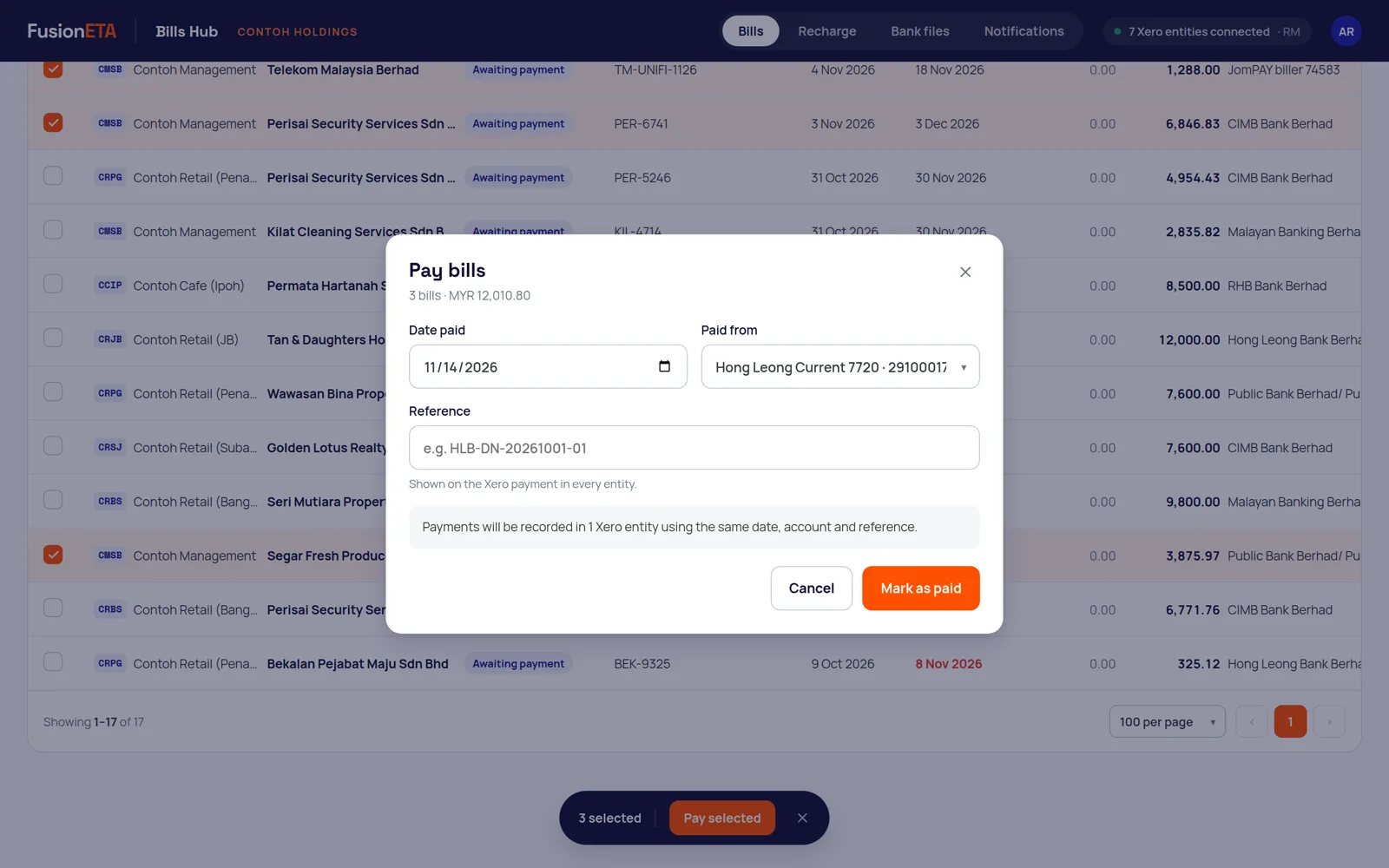
- On Bills, open Awaiting payment and tick the bills to pay.
- Press Pay selected.
- Choose the date paid, the bank account it's paid from, and a reference to show on the Xero payment.
- Press Mark as paid.
Bills Hub records the payment in Xero as a batch payment for that company and bank account, and creates the payment batch with its bank file. If the selection includes JomPay billers and bank transfers, you get one file for each.
Before anything is created, Bills Hub checks that each bill is approved, still owing, in the company's base currency, and not already in another batch. Anything that can't be paid safely, such as a payee with no account number, is reported instead of written into the file.
3. Download the file and upload it to your bank
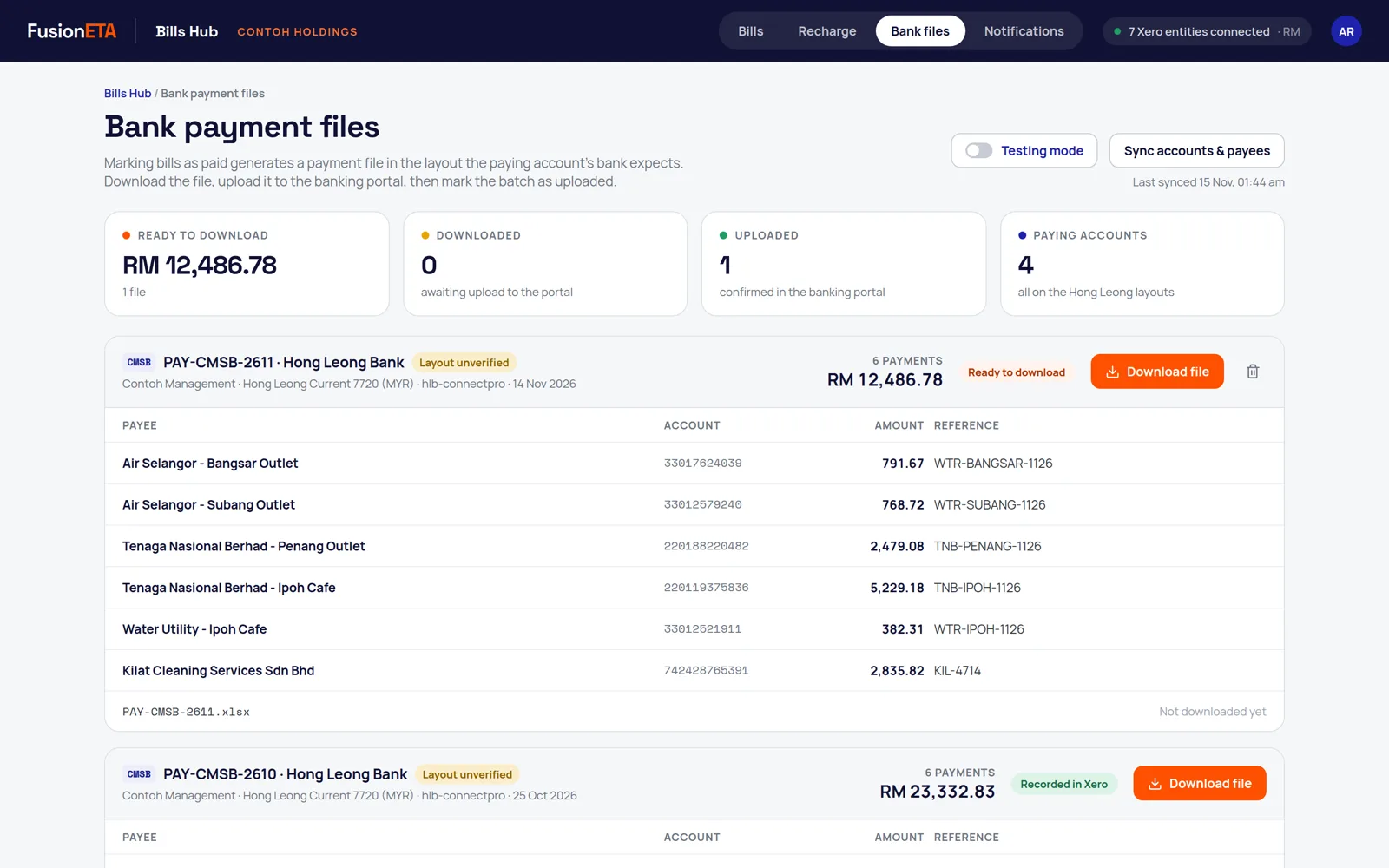
- Open Bank files and press Download file on the batch.
- CIMB: open the workbook in CIMB's BizConverter, convert it, and upload the resulting file to BizChannel@CIMB. Hong Leong: upload the file in ConnectPro.
- Approve and release the payment in your bank as usual. Bills Hub never moves money itself.
- Back in Bills Hub, press Mark uploaded so your team can see the file reached the bank.
Testing mode
Switch on Testing mode on the Bank files tab to rehearse a whole payment run on your live data. Bills Hub still produces the file for you to inspect, but no payment is written to Xero. Turn it off when you're ready for real runs.
Frequently asked questions
Does Bills Hub pay my suppliers?
No. It prepares the bank file and records the payment in Xero. You upload the file and approve the payment in your bank's portal.
When are bills marked paid in Xero?
When you press Mark as paid. Bills Hub records one batch payment in Xero for that company and bank account. In testing mode nothing is written to Xero.
How does Bills Hub know whether to pay by JomPay or bank transfer?
From the supplier's Financial details in Xero. A biller code (digits only) in the Bank account name field means JomPay; a bank's name means a bank transfer.
Can a bill be paid twice?
No. A bill already in a payment batch can't be added to another, and a batch can't be posted to Xero twice.
More Bills Hub guides
Need a hand setting this up?
FusionETA sets up Bills Hub for you and trains your team.
 .