
How a recharge works
A recharge starts when a bill is marked paid in Bills Hub. If a recharge rule matches the bill, Bills Hub raises two documents in Xero:
| Where | Document |
|---|---|
| The company that paid | A sales invoice addressed to the company the cost belongs to |
| The company the cost belongs to | A bill from the company that paid |
Both carry the same amount and reference, name the original supplier, and have the original bill's attachments copied on. The bill also carries the paying company's sales invoice number and a copy of that invoice. By default both sides post to the account the original bill was booked to, so the paying company's expense nets to zero.
Bills settled directly in Xero, including your history, never start a recharge. A rule only acts on bills paid in Bills Hub after the rule was written, so adding one is safe on an account with years of paid bills.
1. Name supplier contacts after the premises
A Xero bill has no premises field, so the simplest reliable setup happens in Xero: give each supplier account its own contact named after the premises it bills, for example Tenaga Nasional Berhad - Bangsar Outlet. One rule condition, "supplier ends with - Bangsar Outlet", then covers electricity, water and sewerage for that outlet.
Where one contact covers several buildings, match on the reference or a tracking category instead.
2. Write the rule
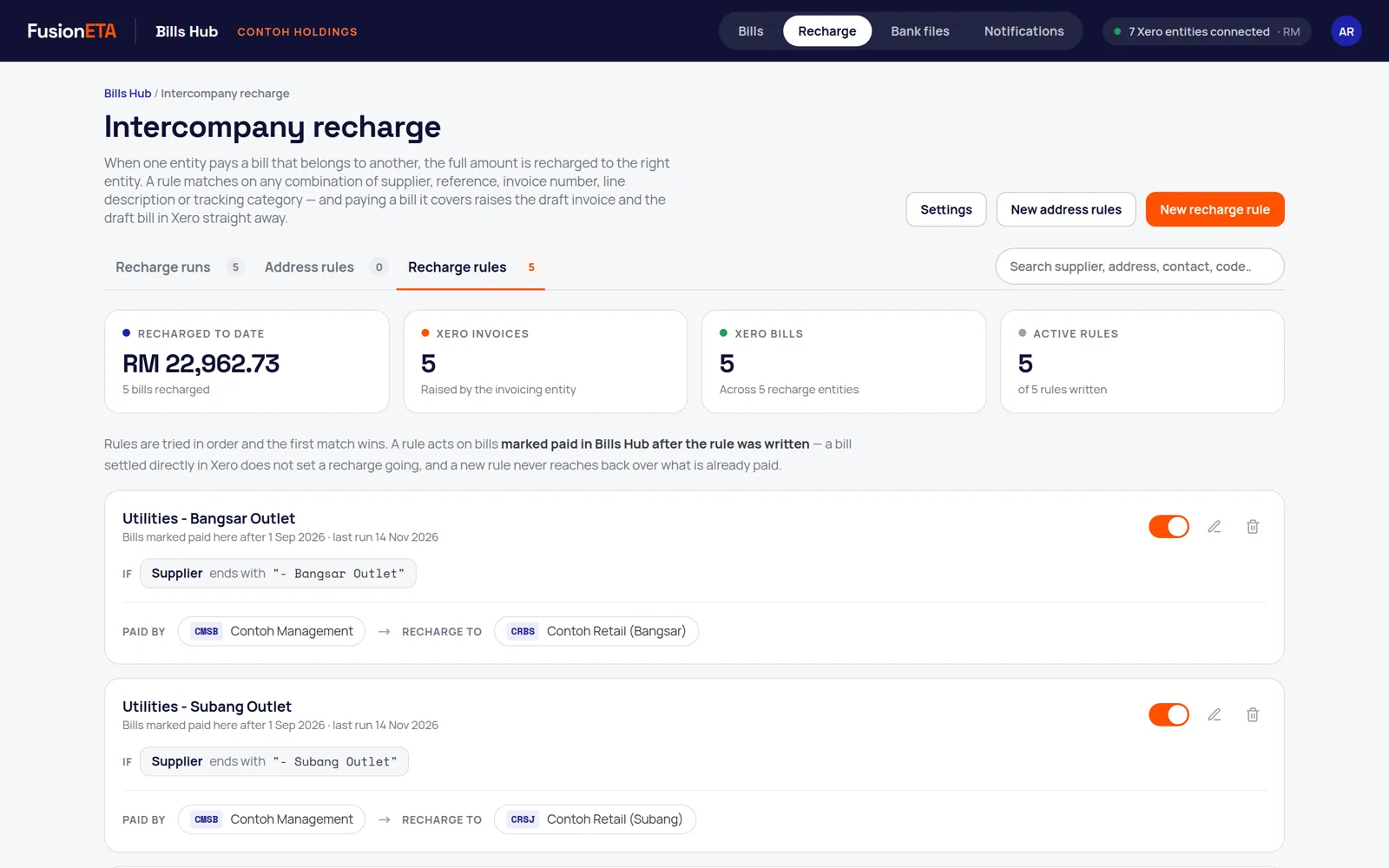
- Open Recharge and press New recharge rule.
- Give it a name, such as Utilities - Bangsar Outlet.
- Add conditions on supplier, reference, invoice number, line description or tracking category, using contains, is, starts with, ends with or does not contain. Choose whether all or any conditions must match.
- Choose which company pays (optional) and which company to recharge to.
- Optionally set the account for each side. Left blank, both use the account the original bill was booked to.
Rules are tried in order and the first match wins, so put a narrow rule above a broad one. A rule with no conditions isn't allowed, because it would recharge every paid bill to one company.
3. Choose recharge settings
Press Settings on the Recharge tab to choose the state each document is created in: Draft, Awaiting approval or Awaiting payment (approved), separately for the sales invoice and the bill. You also set the payment terms used when a contact has none of its own in Xero; a contact's own terms are used first.
LHDN e-invoicing: Malaysian e-invoicing submits an invoice when it's approved in Xero, so only Awaiting payment reaches LHDN. An approved document can't be deleted; correcting it needs a void or credit note. Drafts are the safe default, and each company approves its own.
4. Check the recharge runs
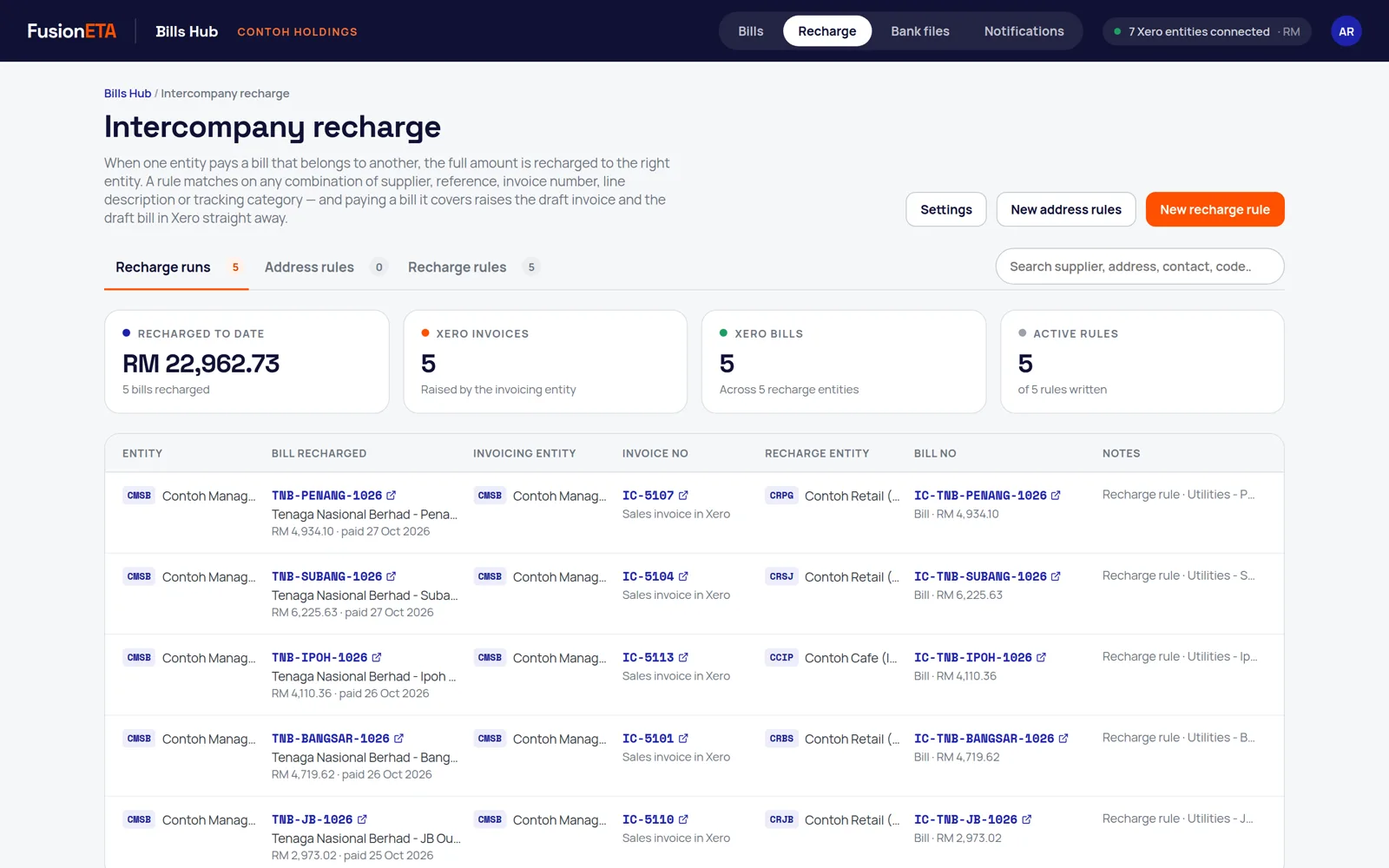
Recharge runs lists every recharge: the bill that was paid, the invoice raised in the paying company, the bill in the receiving company, and the rule that decided it. Each document links straight into the right Xero organisation.
Recharges are raised even in testing mode, which blocks only payments, so you can try a rule end to end. Delete any test drafts in Xero afterwards.
Frequently asked questions
What starts a recharge?
Marking a bill paid in Bills Hub. Bills settled directly in Xero never start one.
Will a new rule recharge bills we paid last year?
No. A rule only acts on bills paid in Bills Hub after the rule was written.
Are recharges approved automatically?
Not by default. Both documents are created as drafts unless you choose another state in Recharge settings.
Does Bills Hub handle group consolidation?
No. It raises the recharge documents. For consolidated group reports, use a consolidation tool such as Syft Analytics.
More Bills Hub guides
Need a hand setting this up?
FusionETA sets up Bills Hub for you and trains your team.
 .