Sync Bitrix24 invoices to Xero
Create invoices in Bitrix24 CRM and they arrive in Xero as drafts, with matching numbers and IDs. As Xero updates the status, the Bitrix24 invoice moves stage on its own.
- 1In Bitrix24
Map your invoice stages to Xero statuses
Open the app and go to Advanced settings › Invoice Sync. The app finds your Bitrix24 invoice stages. Match each one to a Xero status, for example New → Draft and Sent to customer → Awaiting Approval.
Invoices are always created in Xero as Draft. After that, status only flows back from Xero: when an invoice reaches a mapped status in Xero, the app moves the Bitrix24 invoice to the matching stage.
A red Field missing badge means invoice sync isn't fully set up yet. Check that the Xero Invoice ID field is available on your invoices, then reopen this tab.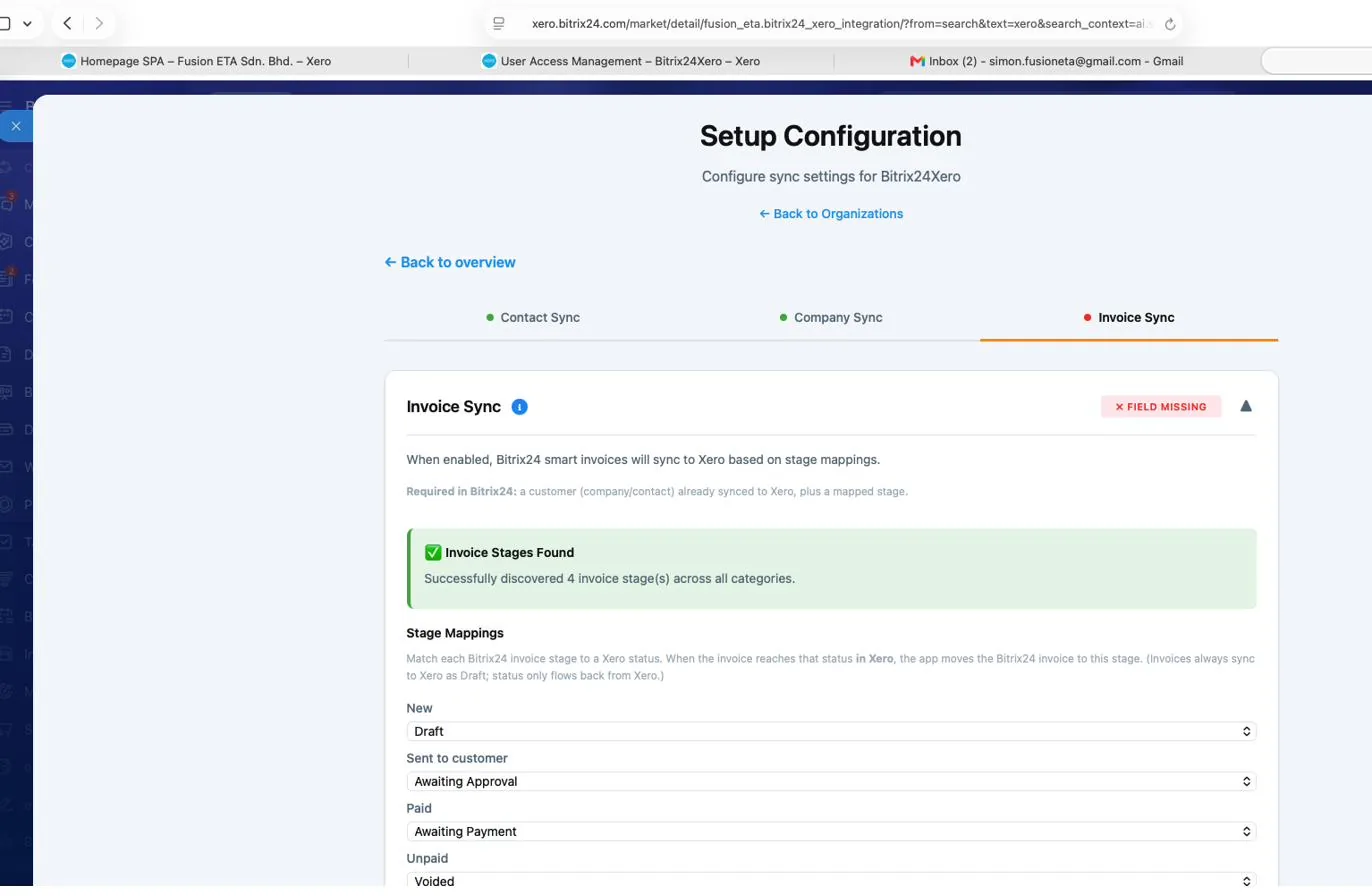
- 2In Bitrix24
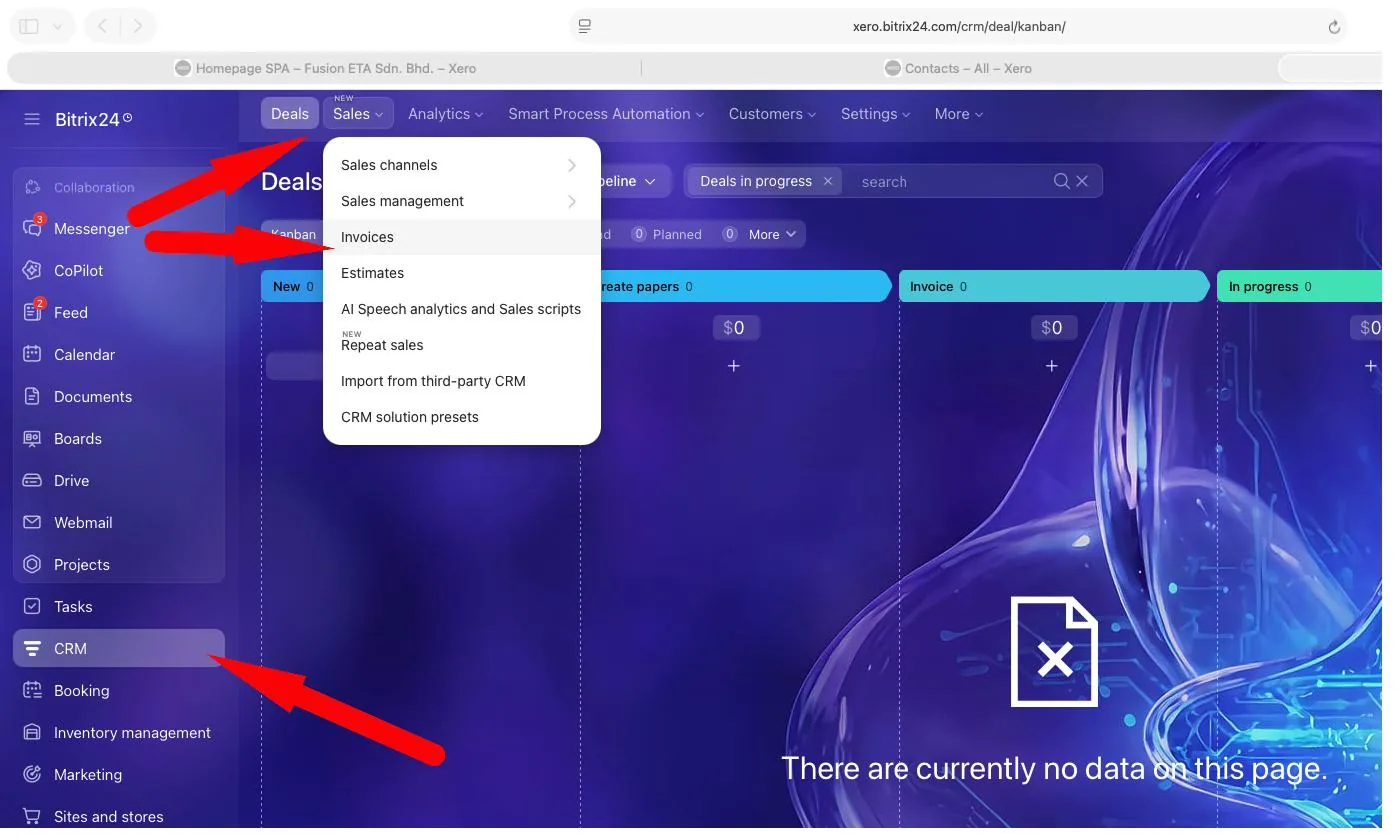
Open CRM › Sales › Invoices
In the left menu choose CRM, then open Sales › Invoices in the top menu.
- 3In Bitrix24
Create the invoice
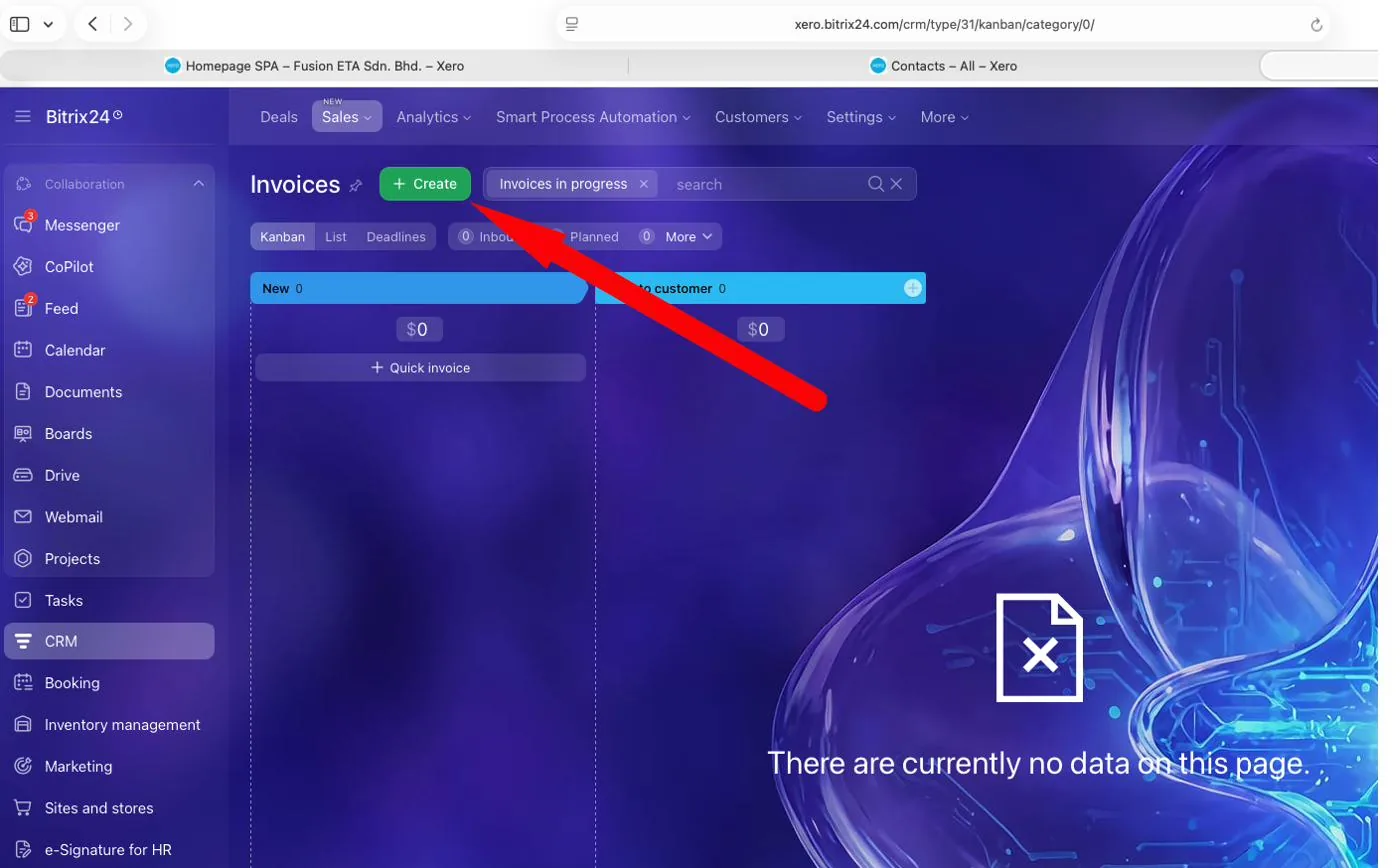
Click Create. Fill in the invoice as usual:
- Under Invoice recipient, choose a contact or company that's already synced to Xero.
- Under Products, add the items you're billing.
- Set the invoice date, then save.
- 4In Bitrix24
Watch the Xero invoice number appear
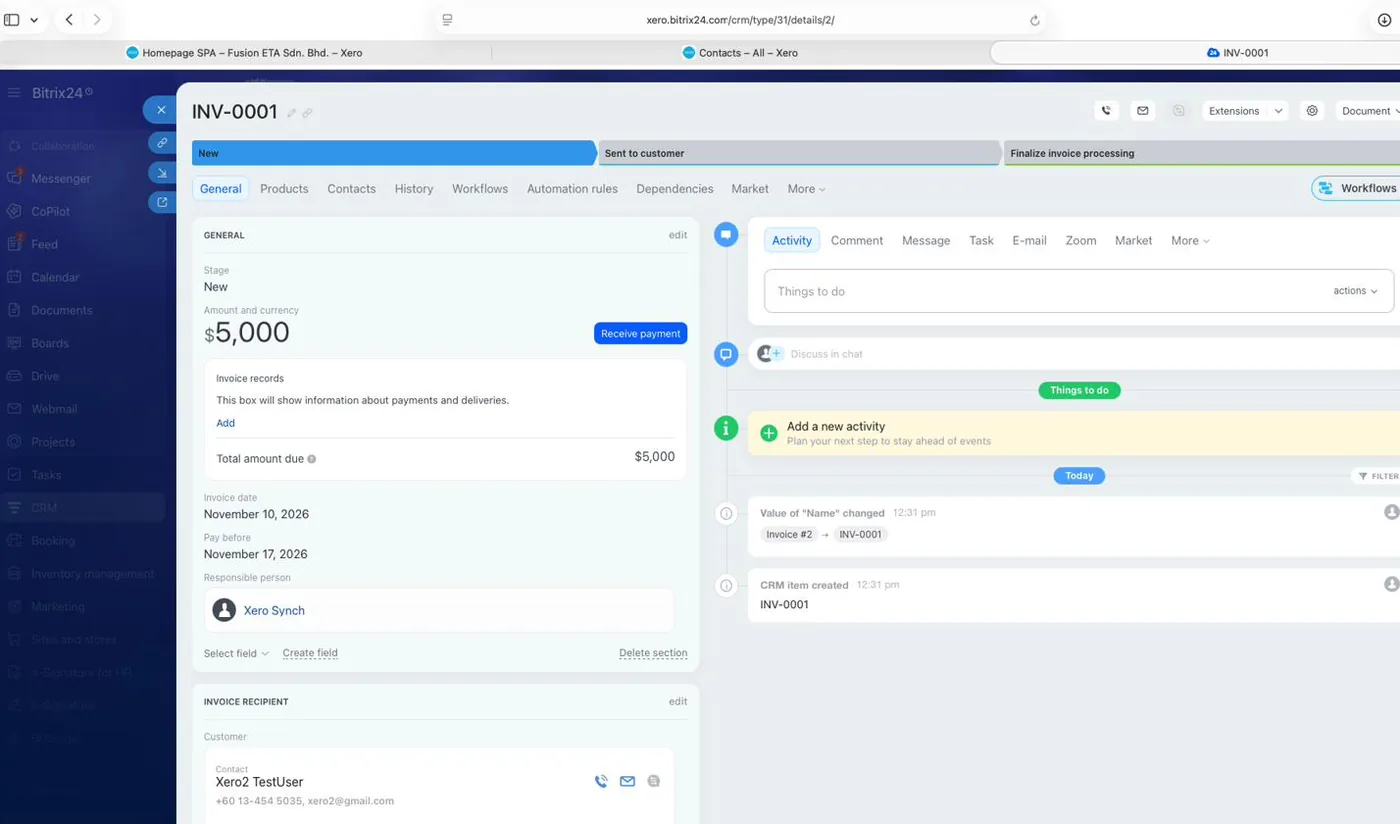
Once the invoice reaches Xero, the app renames the Bitrix24 invoice to the Xero invoice number. In the history on the right you'll see the name change from Invoice #2 to INV-0001, so both systems use the same number.
- 5In Bitrix24
Check the Xero Invoice ID
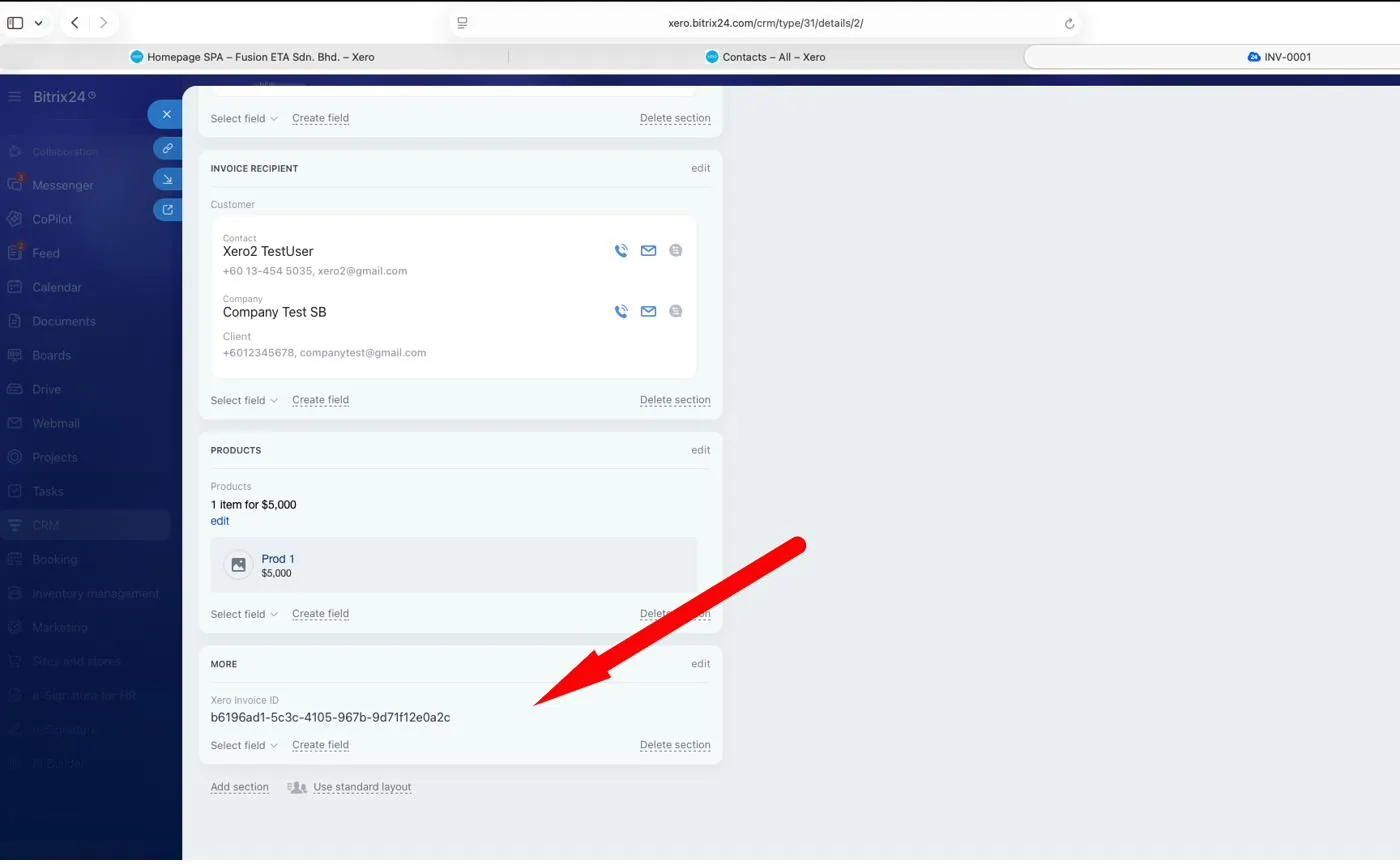
Scroll down to More. The Xero Invoice ID field now links this invoice to the one in Xero. The recipient and product lines are what was sent.
- 6In Xero
Review the draft invoice in Xero
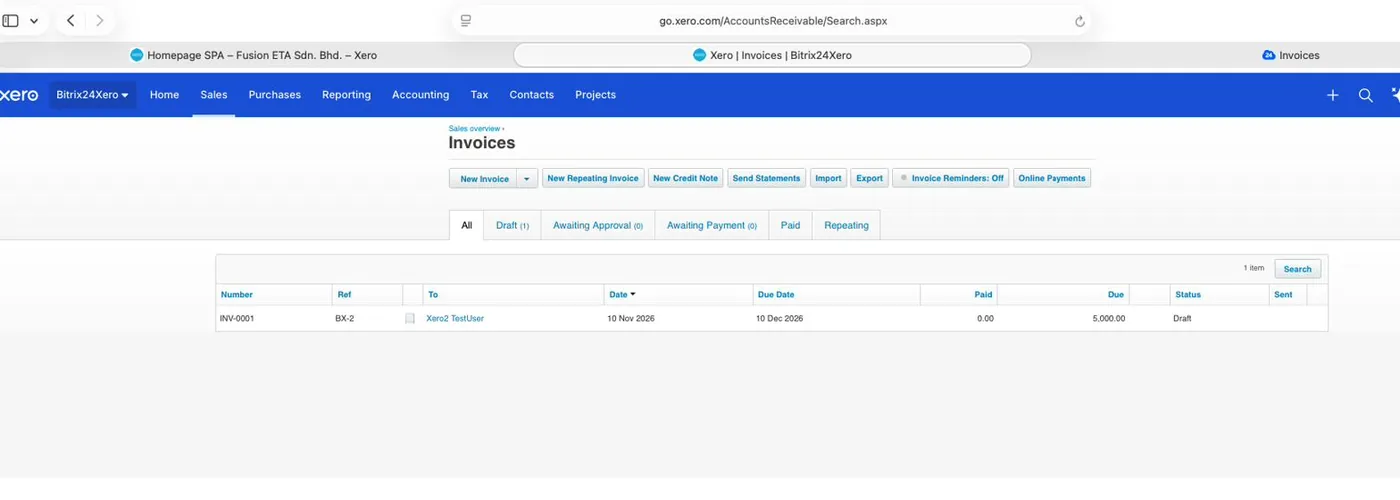
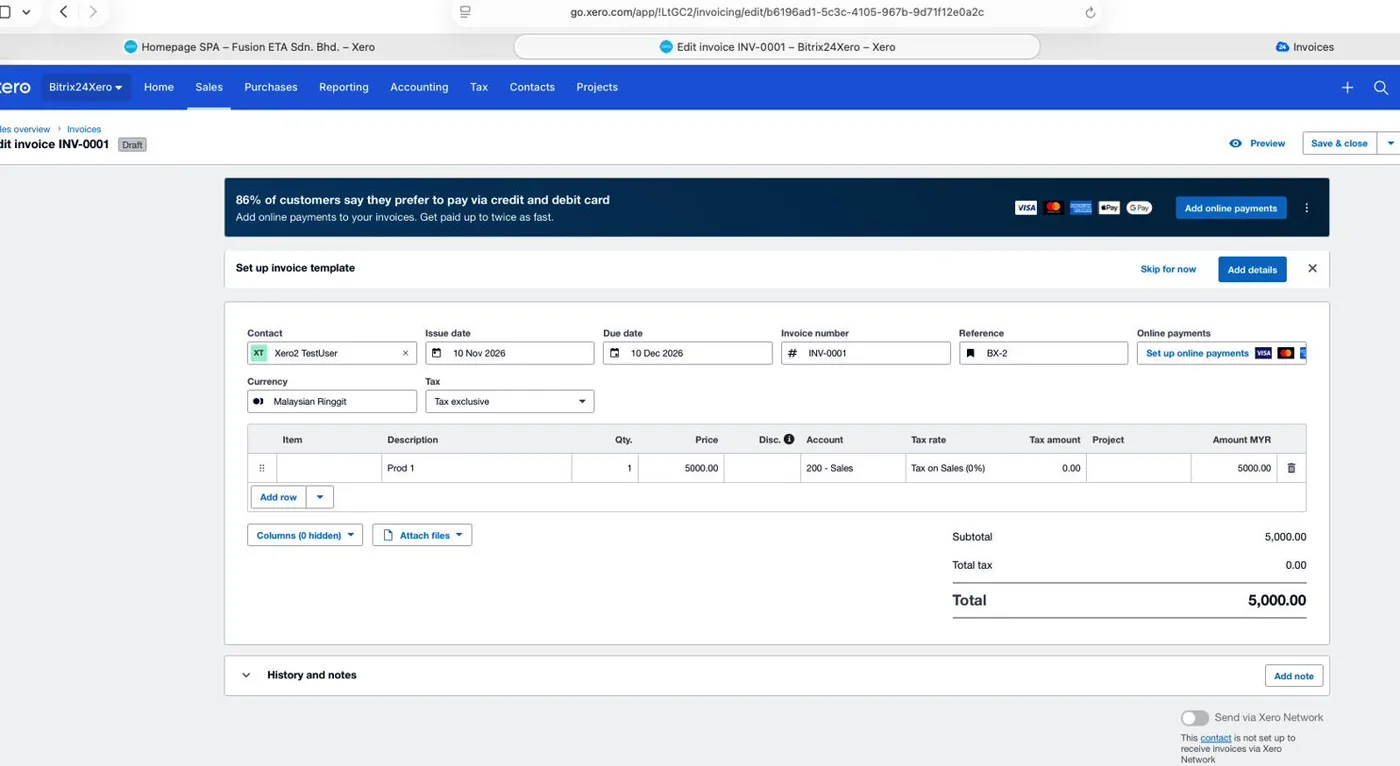
In Xero, open Sales › Invoices. The invoice is waiting under Draft with the same contact, line items and total. The Reference (for example
BX-2) points back to the Bitrix24 invoice.Check the account code and tax rate, then approve and send it from Xero as normal.
- 7In Xero
Let Xero drive the invoice stage
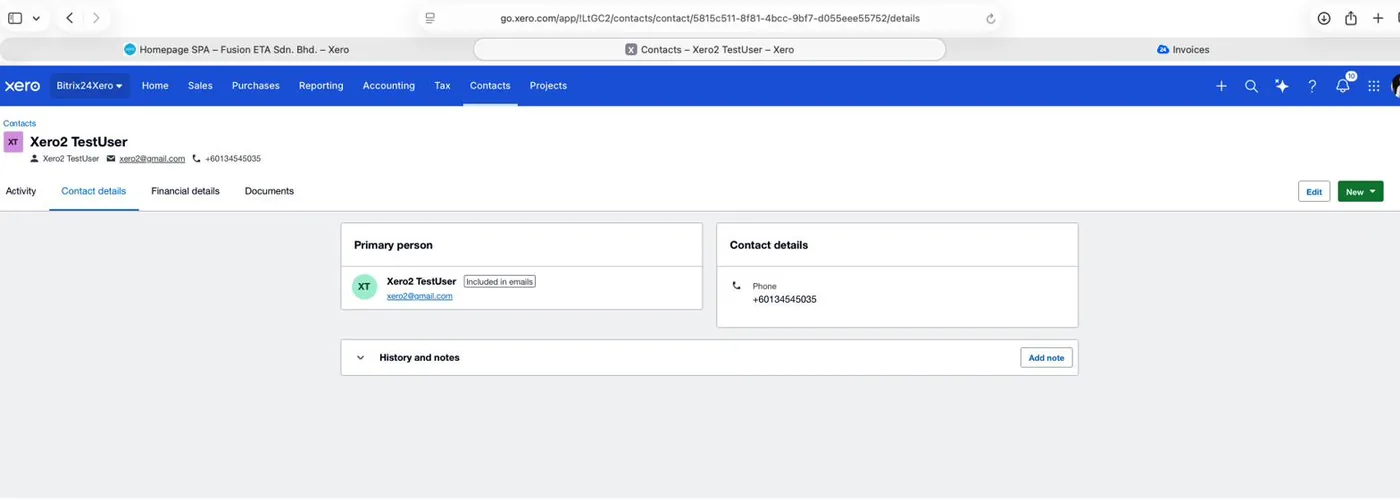
Work the invoice in Xero as you always do. When it reaches a status you mapped in step 1 — awaiting approval, awaiting payment, paid or voided — the app moves the Bitrix24 invoice to the matching stage. Your sales team sees payment progress in the CRM without asking accounts.
 .